Set up AWS
On AWS, Polars Nanook runs queries on EC2 instances in your own account. It starts them on demand and stops them. A CloudFormation stack in your account sets up the network and IAM roles it needs.
Get started on AWS shows how to deploy the stack from the portal or with
the nanook command line tool.
Resources created by the CloudFormation stack
Connecting a workspace to AWS creates the following infrastructure.
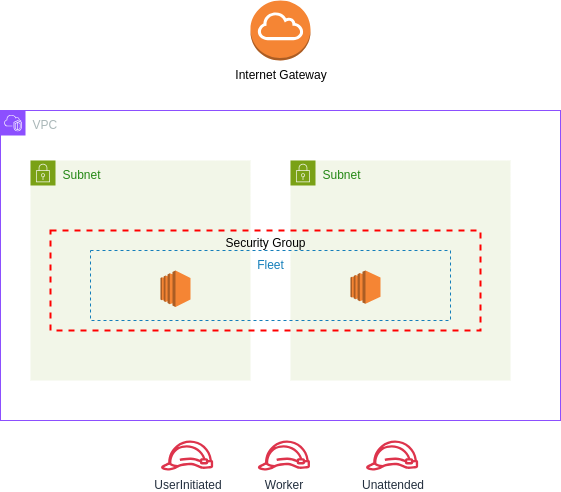
- A
VPCand twosubnetsin which the Polars EC2 workers run. - Two
security groups: one for direct mode (connection_mode="direct", the default), which allows direct communication between the client and the compute cluster, and one for proxy mode (connection_mode="proxy"), which does not have any public ports. A cluster started in proxy mode is placed in the proxy-mode security group. IAMWorkerRoleIAM role. Polars EC2 workers run under this IAM role.PolarsUserInitiatedActionRoleandIAMUnattendedRoleIAM roles. The user-initiated role has the permissions to start Polars EC2 workers in your AWS account. The unattended role terminates compute clusters that were left running.- The S3 bucket
polars-cloud-<WORKSPACE_ID>, which holds stored results for one day and query profiles.
Apart from S3 storage for results and profiles, these resources cost nothing while no compute cluster runs.
IAM permissions per role
The lists below show the permissions of each role. Polars Nanook has no access to the data in your
AWS account.
Security and data boundaries
lists what leaves your account. Set the PermissionsBoundary stack parameter to attach a
permissions boundary
to the three roles.
PolarsUserInitiatedActionRole
- ec2:CreateTags
- ec2:RunInstances
- ec2:DescribeInstances
- ec2:DescribeInstanceTypeOfferings
- ec2:DescribeInstanceTypes
- ec2:TerminateInstances
- ec2:CreateFleet
- ec2:CreateLaunchTemplate
- ec2:CreateLaunchTemplateVersion
- ec2:DescribeLaunchTemplates
- ec2:CreatePlacementGroup (placement groups tagged with the workspace only)
- iam:PassRole (the worker role only)
- s3:GetObject (query profiles in the stack's bucket)
IAMUnattendedRole
- ec2:DescribeInstances
- ec2:DescribeInstanceStatus
- ec2:TerminateInstances
- ec2:DescribeFleets
- ec2:DeleteLaunchTemplate
- ec2:DeleteLaunchTemplateVersions
- ec2:DeleteFleets
- ec2:DeletePlacementGroup
- sts:GetCallerIdentity
- sts:TagSession
- s3:ListBucket and s3:DeleteObject (the stack's bucket only)
IAMWorkerRole
- ec2:DescribeTags
- s3:PutObject
- s3:GetObject
- s3:ListBucket
To change the worker role's S3 access, see Read and write cloud storage.
Deployment into an existing VPC
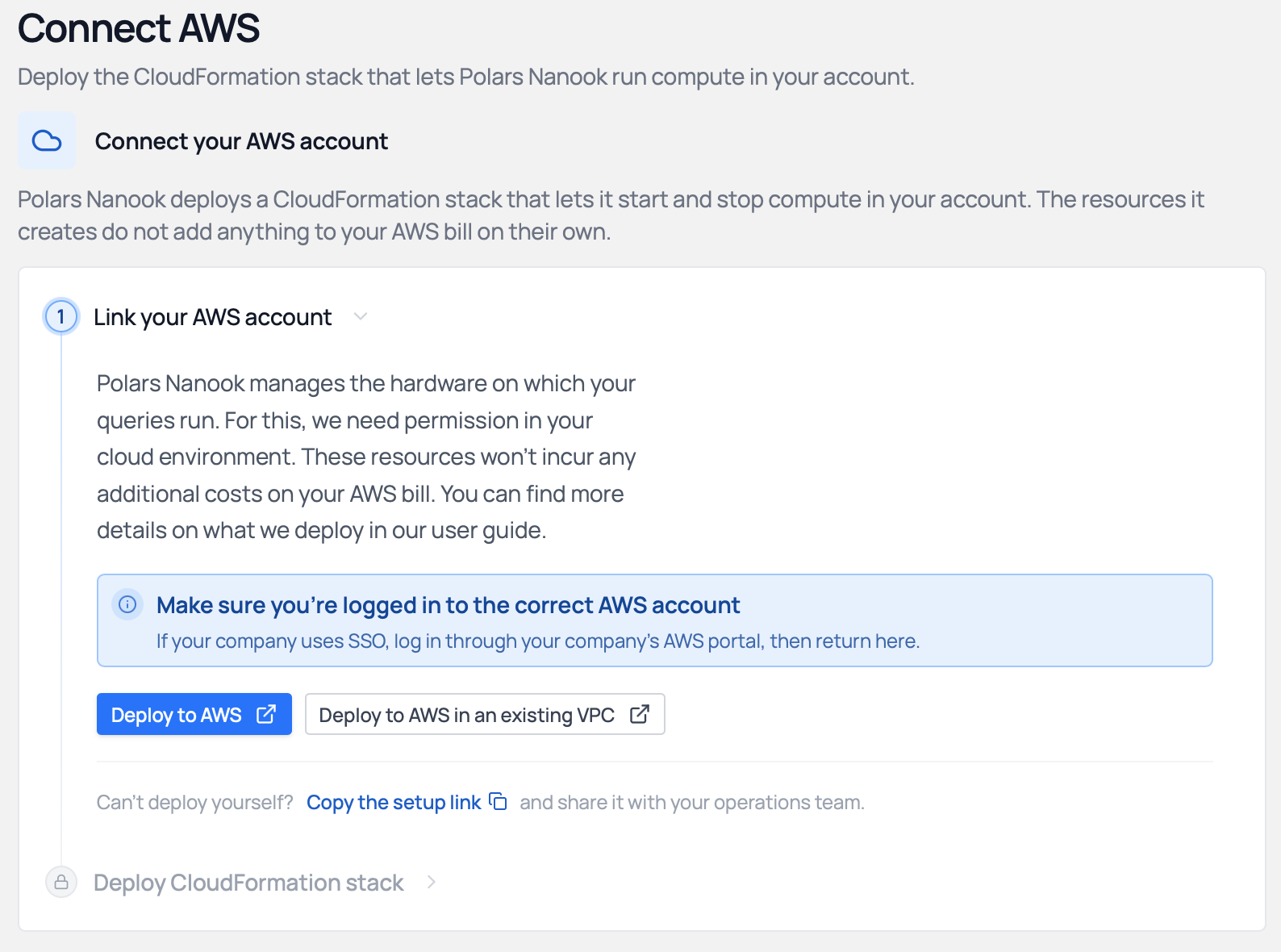
By default, the stack deploys its own dedicated network: a VPC, subnets and related resources. The "Deploy to AWS in an existing VPC" option deploys the stack into an existing VPC and subnets of your choice instead.
The subnets can follow your organization's requirements. By default the Python client that runs the queries must reach the compute, so the subnet must be public.
Use the default network when the AWS account has no networking constraints and the workers only need to reach S3 and the client. Bring your own VPC when workers must reach resources inside an existing VPC (for example a database or a VPC endpoint for S3), when the organization forbids new VPCs, or when private subnets are required. With private subnets, combine it with proxy mode, which needs only outbound access.
Workspace compute defaults
The portal stores default compute settings per workspace. A new workspace has no hardware defaults,
and a ComputeContext that passes no hardware fails until a workspace admin sets them. To set them,
open Integrations > Infrastructure in the portal sidebar and select Amazon Web Services. The
page sets:
- The default hardware requirements and storage of each machine.
- The default
cluster_size. - The default idle timeout.
Custom setups
If your organization does not need every component of the default AWS deployment, such as the VPC or the subnets, or has additional security requirements, the Polars engineering team integrates Polars Nanook with your existing infrastructure. Contact us to set it up.
Disconnect AWS
Stop all running clusters first. As a workspace admin, open Integrations > Infrastructure in the sidebar, select Amazon Web Services, and click Unlink AWS account under Danger zone. From the command line:
nanook workspace aws disconnect --workspace-name "My workspace"
Both show the name of the workspace's CloudFormation stack and a link to it. Delete that stack in your AWS account, and the AWS connection clears once AWS reports the stack is gone.