Pay through AWS Marketplace
AWS Marketplace is one of the two payment methods. Setting it up has two parts: subscribe on AWS Marketplace, then link the subscription to the Polars Nanook organization.
Before you start
Requirements:
- An AWS account with permission to subscribe to AWS Marketplace products. This requires the
aws-marketplace:SubscribeIAM action, which is included in the AWS managed policyAWSMarketplaceManageSubscriptions. - Admin access to the Polars Nanook organization, to link the subscription.
Step 1: Subscribe on AWS Marketplace
- Open the Polars Nanook listing on AWS Marketplace from Organization > Billing in the portal, or search for "Polars Nanook" in AWS Marketplace.
- Click View purchase options.
- Choose the Developer plan dimension to pay for compute beyond the included vCPU-hours, or the Team plan dimension to move the organization to Team, and click Subscribe.
AWS may show the subscription as pending for a few minutes while it processes the agreement.
Step 2: Link the subscription to your organization
After subscribing, AWS Marketplace shows a banner stating "You've already accepted this offer" with a Set up your account button.
Subscribing alone does not link your organization
If you skip Set up your account, the organization keeps showing "Organization is not subscribed. Visit the AWS Marketplace to setup your subscription." even though the subscription is active on the AWS side. To link it later, see Returning to the account setup.

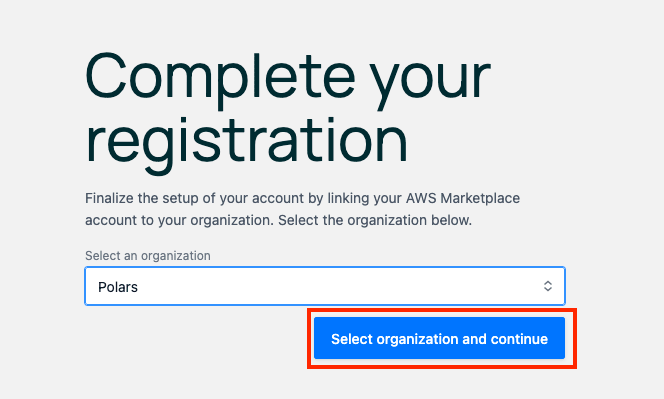
Set up your account opens the "Complete your registration" page in the portal. Sign in with the Polars Nanook account if prompted, then select the organization to link the subscription to and click Select organization and continue.
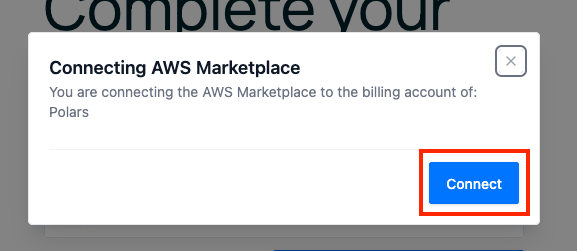
Confirm the connection with Connect in the dialog.
Verify the connection
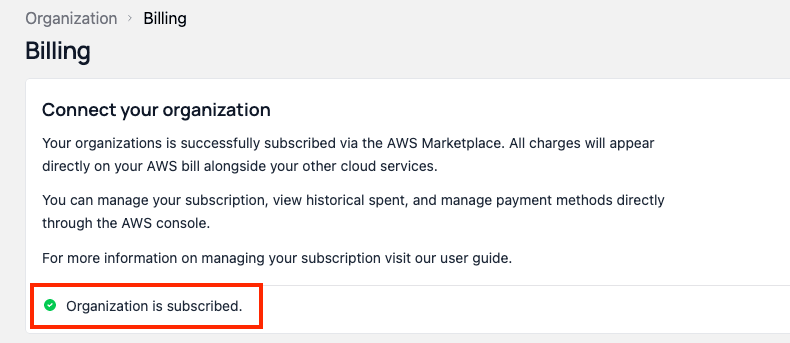
After linking, the portal opens Organization > Billing, where the status changes to "Organization is subscribed" once AWS has processed the subscription. That usually takes minutes, an hour at most.
Returning to the account setup
If you closed the page before clicking Set up your account, reopen it with these steps. AWS generates a fresh link on every visit:
- Sign in to the same AWS account that holds the subscription.
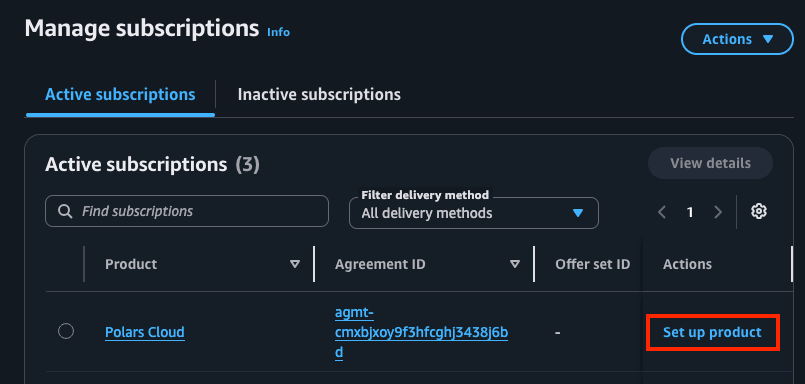
- Open the AWS Marketplace console and go to Manage subscriptions.
- Find the Polars Nanook subscription and click Set up product.
From there, follow the steps under Step 2 to link the subscription to the organization.
Private offers
For a committed annual spend, procurement through an existing AWS agreement, or terms the public listing does not cover, contact Polars for a private offer on AWS Marketplace.
Charges
AWS bills the Polars Nanook charges through the AWS account, so they show up in AWS Cost Explorer next to the charges for the instances themselves.
Change or cancel the plan
Change plans and cancel the contract in AWS Marketplace. The portal links there from Organization > Billing. An upgrade to Team applies immediately. To move from Team to Developer, turn off auto renewal of the contract. When the contract ends or you cancel it, running clusters keep running, and about an hour later the subscription is unlinked and the organization moves to the Developer plan.